A Quick Guide: Create QuickBooks Antivirus Exclusion

Qbooks Hub specializes in delivering customized solutions for your organization’s software-related needs, ensuring smooth operations and optimized performance. In addition to our software expertise, we offer a full range of accounting services, including bookkeeping, cash flow management, financial reporting, and payroll management. Our goal is to help businesses enhance efficiency and maintain financial clarity. Trust Qbooks Hub to simplify both your software and accounting processes, allowing you to focus on growth and success.
Suppose you want to run QuickBooks smoothly. It's important to create Antivirus Exclusion. Using Antivirus Exclusion is a good practice to keep your computer secure by scanning files and programs for threats and blocking risks. The Antivirus software plays a vital role in computer security, however it can trigger issues with other applications. We will share instructions on how to create QuickBooks Antivirus Exclusion to prevent antivirus software from scanning QuickBooks program files, ensuring a smooth and uninterrupted experience.
This blog will cover steps for popular programs like Bitdefender, Microsoft Defender, Norton, McAfee, Sophos, AVG Antivirus, and many more.
You Must Do the Following Before Creating an Exclusion for QuickBooks
Make sure to save a backup copy of your company file and have a clean version to restore it when an antivirus exception unintentionally allows a virus to infect your files.
Update QuickBooks Desktop to the newest release before making any antivirus adjustments, to ensure that you don't encounter any other issues.
Configuring Your Firewall Settings Correctly for QuickBooks.
QuickBooks Files You Should Exempt in Your Antivirus Program
To set up QuickBooks exceptions, you need to identify the QuickBooks executable files, which are responsible for running different projects.
The following table includes different QuickBooks files for reference when adding antivirus exemptions.
| QB Executable Files | Their Location |
| AutoBackupExe.exe | C:\Program Files\Intuit\QUICKBOOKS YEAR |
| FileManagement.exe | C:\Program Files\Intuit\QUICKBOOKS YEAR |
| Dbmlsync.exe | C:\Program Files\Intuit\QUICKBOOKs YEAR |
| QuickBooksMessaging.exe | C:\Program Files\Intuit\QUICKBOOKS YEAR |
| QBServerUtilityMgr.exe | C:\Program Files\Common Files\Intuit\QuickBooks |
| QBLaunch.exe | C:\Program Files\Common Files\Intuit\QuickBooks |
| DBManagerExe.exe | C:\Program Files\Intuit\QUICKBOOKS YEAR |
| FileMovementExe.exe | C:\Program Files\Intuit\QUICKBOOKS YEAR |
| OnlineBackup.exe | C:\Program Files\QuickBooks Online Backup |
| IntuitSyncManager.exe | C:\Program Files\Common Files\Intuit\Sync |
| QBCFMonitorService.exe | C:\Program Files\Common Files\Intuit\QuickBooks |
| QBDBMgrN.exe | C:\Program Files\Intuit\QUICKBOOKS YEAR |
| QBW32.exe | C:\Program Files\Intuit\QUICKBOOKS YEAR |
Now, discuss the section below on how to create QuickBooks Antivirus Exclusion with simple methods.
Steps to Create QuickBooks Antivirus Exclusions
The following methods are available to create AV exceptions for the QuickBooks program files in various antivirus software.
1. Making QuickBooks Antivirus Exceptions in Bitdefender
Here's how you can create AV exceptions in Bitdefender.
First, open the Bitdefender app and press the Protection tab from the navigation menu.
And open the Antivirus page.
Go to the Settings tab and click on Manage Exceptions.
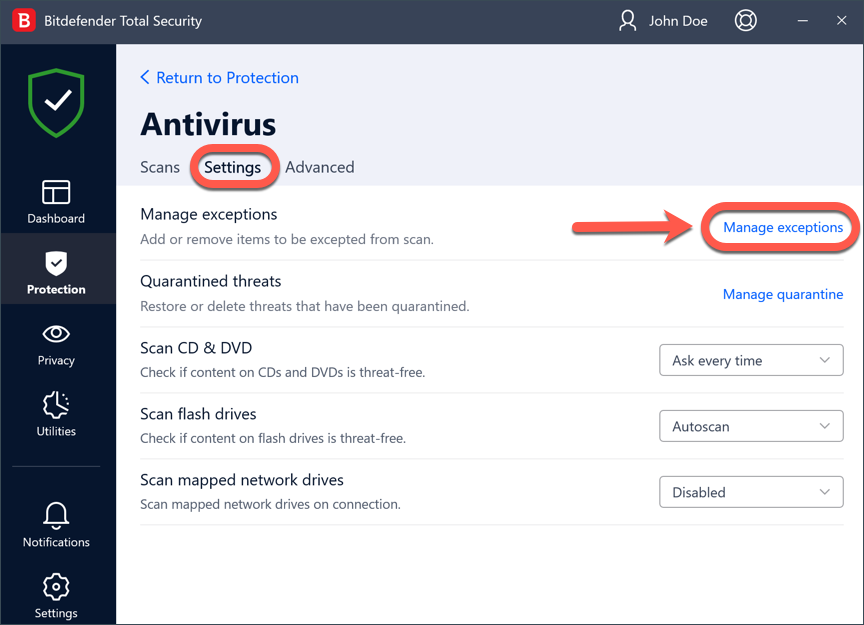
Tap on Add an Exception.
Enter the file path of a QuickBooks file in the table.
Ensure that the switch next to 'Antivirus' is enabled.
And then click on the Save button, and it will add a new rule to the list of AV exceptions.
2. Microsoft Windows Defender
Press the Start menu and search for "Settings."
Choose Update and Security. Now, press Windows Security and click on Virus & Threat Protection.
From the left pane, choose Manage settings.
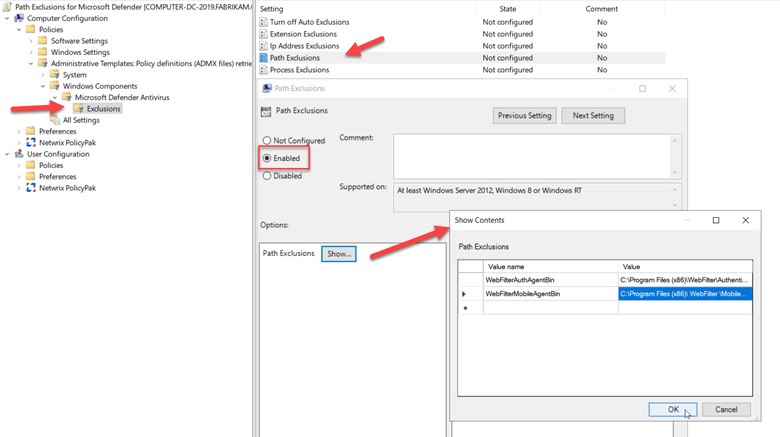
Choose Exclusion and then click on Add or remove exclusions.
Choose Add an Exclusion and select the option for creating the exception file. File type, folder, and process.
After adding the file path to exclude, click Ok to save changes.
3. Creation of McAfee Exception for QuickBooks
Open your McAfee app.
Go to the My Protection tab.
Scroll down to Device.
Select Real-time Scanning.
Click on "Excluded file," then click the "Add file" option.

Now browse and choose the files you want to exclude from being scanned.
Repeat the same steps if you have multiple files.
4. Webroot Antivirus Program
First, launch the Webroot antivirus software.
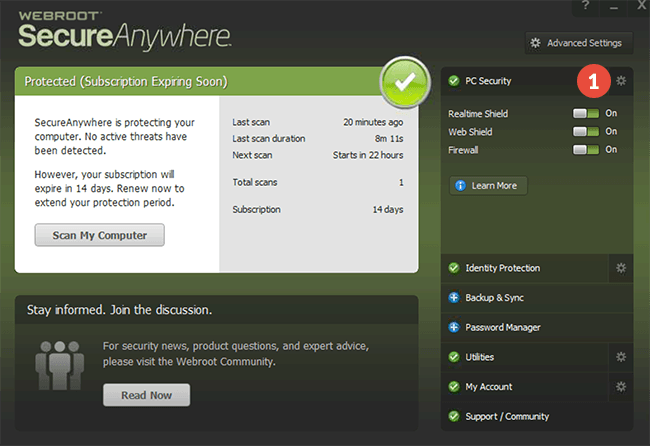
Choose the Gear icon next to PC security.
Navigate to Block/Allow files and press the Add file button.
To see the file name, check the File column.
Choose the Radio button for Block, Allow, or Monitor. In the right column, select Block as you exclude the QuickBooks files from being scanned.
Click the Remove all button to delete the list.
Summary
In this blog, we have outlined proven steps to create QuickBooks Antivirus exclusions in the software you use. Use the given instructions for smooth performance and nonstop workflows. For Queries, we recommend connecting with a QuickBooks ProAdvisor for expert assistance.
Read More: